You've setup the AWS Management Portal/Connector for vCenter and are ready to migrate the appropriate workloads to EC2. You power off the VM, Right Click and select "Migrate to EC2".
Easy peasy, Right? Well, it is until you receive the following error:
VM has more than one disk attached, which is not supported for VM migration
At this time, importing a VM with more than one disk is not supported. Heck, most of my VMs have several VMDKs associated with them...
Amazons work around is to import the VM with only the boot drive. Then import any additional disks using the ec2-import-volume and ec2-attach-volume command.
I attempted to "trick" EC2 into thinking the VM had only one disk by selecting "Remove from virtual machine" in the settings. Unfortunately, this produced the same error.
Since I didn't want to delete the vmdk from the original VM, I created a clone of the VM with the "Remove from VM" setting selected. This worked.
In my next post, I will go through the disk import and attach process.
I'm a Sr. Systems Engineer at a Global Environmental Engineering company. I've been in IT since 1999 and from 2005, my focus has been VMware datacenter products. More recently, my attention has been for Microsoft Azure services. As the Global Service Owner for VMware Datacenter products, I've had the pleasure of having in-depth and hands-on experience with not only VMware products, but server, storage and networking technologies.
Saturday, November 8, 2014
Friday, November 7, 2014
AWS Managment Portal for vCenter Setup and Configuration Notes
I've been using the AWS Connector for vCenter to import VMs from our internal infrastructure to AWS EC2. For the most part, the instructions provided by Amazon were pretty thorough.
http://docs.aws.amazon.com/amp/latest/userguide/introduction.html
I'm just wanted to point out some minor issues I ran across.
1. When entering your domain and user account information, confirm that the letter case is accurate.
2. Insufficient resources to satisfy configured failover level for vSphere HA - After deploying the AWS Connector OVA, I was unable to power on the VM. To resolve this issue, remove the CPU and Memory Reservations (or increase Host resources to accommodate the reservations):
3. vCenter user "Domain\ADUser" does not have administrator privileges - During the AWS Connector setup process, I received the error below. At this time, AWS does not support AD groups.
http://docs.aws.amazon.com/amp/latest/userguide/introduction.html
I'm just wanted to point out some minor issues I ran across.
1. When entering your domain and user account information, confirm that the letter case is accurate.
2. Insufficient resources to satisfy configured failover level for vSphere HA - After deploying the AWS Connector OVA, I was unable to power on the VM. To resolve this issue, remove the CPU and Memory Reservations (or increase Host resources to accommodate the reservations):
3. vCenter user "Domain\ADUser" does not have administrator privileges - During the AWS Connector setup process, I received the error below. At this time, AWS does not support AD groups.
Although the account I attempted to use was an Administrator of the
vCenter server through the use of AD groups, I had to explicitly add
the account as an Administrator at the vCenter server level.
4. Failed to retrieve information about domains and users from vCenter due to internal error - When trying to assign permissions through the AWS Managment Portal Plug-in I received the following error:
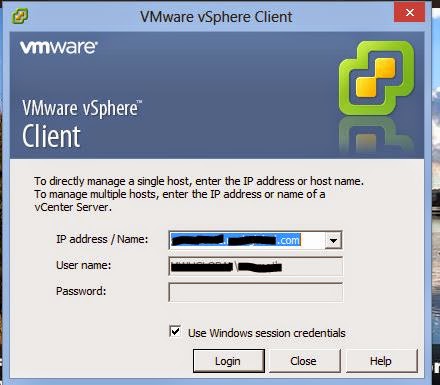
To resolve this issue, log in to the vSphere Client using the FQDN of the vCenter server:
Thursday, September 25, 2014
Scott Lowe - Keynote at the 2014 SoCal VMUG User Conference
Yesterday, I had the opportunity to see Scott Lowe (http://blog.scottlowe.org/) present the Keynote at the SoCal VMUG users conference. The Keynote was titled Closing the Cloud Skills Gap and he "kept it real"
Below are some key facts that ALL Technologists should consider:
Virtually all IT job growth will be in cloud services (26%).
Top Skills in Cloud Services:
1. Risk Management
2. IT Service Management
3. Project/Program Management
4. Business - IT alignment
5. Technical skills in the Cloud (Ok, the low ranking of technical skills surprised me - KU)
IT Alignment:
1. Talk to the Business. What are their goals and challenges.
2. Dont use IT Jargon. They don't care. (IOPs, TB, PB)
3. Try to say "Yes". Solve the problem. Offer some options and have them make the decision. Saying "NO" is asking for Shadow IT.
Technical Skills Needed:
1. Software Development Basics - ex. promoting from dev --> prod.
2. Linux - Ubuntu, Red Hat, CentOS. (WD-40).
3. Automation and Orchestration - PowerShell, Python, Ruby. Configuration management - Puppet, Chef. No "Snow Flake Servers". No more "Hand Crafted" efforts.
4. Public Cloud Services - vCloud Air, AWS, Azure.
All of us need to take a good look at ourselves. We need to make sure we evolve and gain new skills.
Some neat phrases I picked up during the conference:
"If you don't like change, you will like irrelevance less" (See above - KU)
"Security puts the "NO" in "Innovation"
"One throat to choke"
Phrases I'm tired of:
"Software Defined ANYTHING"
"Single pane of glass"
"Game Changer"
Below are some key facts that ALL Technologists should consider:
Virtually all IT job growth will be in cloud services (26%).
Top Skills in Cloud Services:
1. Risk Management
2. IT Service Management
3. Project/Program Management
4. Business - IT alignment
5. Technical skills in the Cloud (Ok, the low ranking of technical skills surprised me - KU)
IT Alignment:
1. Talk to the Business. What are their goals and challenges.
2. Dont use IT Jargon. They don't care. (IOPs, TB, PB)
3. Try to say "Yes". Solve the problem. Offer some options and have them make the decision. Saying "NO" is asking for Shadow IT.
Technical Skills Needed:
1. Software Development Basics - ex. promoting from dev --> prod.
2. Linux - Ubuntu, Red Hat, CentOS. (WD-40).
3. Automation and Orchestration - PowerShell, Python, Ruby. Configuration management - Puppet, Chef. No "Snow Flake Servers". No more "Hand Crafted" efforts.
4. Public Cloud Services - vCloud Air, AWS, Azure.
All of us need to take a good look at ourselves. We need to make sure we evolve and gain new skills.
Some neat phrases I picked up during the conference:
"If you don't like change, you will like irrelevance less" (See above - KU)
"Security puts the "NO" in "Innovation"
"One throat to choke"
Phrases I'm tired of:
"Software Defined ANYTHING"
"Single pane of glass"
"Game Changer"
Monday, September 15, 2014
One of my posts was referenced by Dell Enterprise Server Support
What a crazy coincidence! A friend of mine in the UK just let me know that Dell Enterprise Server Support referenced one of my Blog posts to help resolve his issue!
Thursday, September 11, 2014
VMware Update Manager: The host returns esxupdate error code:7.
I received the following error while patching the very LAST host in the Datacenter.
The host returns esxupdate error code:7. Cannot download VIB. Check the Update Manager log files and esxupdate log files for more details.
I tried the recommendations on the following KB to no avail.... Attempting to Stage the patches produced the same error.
http://kb.vmware.com/selfservice/microsites/search.do?language=en_US&cmd=displayKC&externalId=2020961
So, I went "Old School" with the the host. I placed it in Maintenance Mode and proceeded to reboot it. After the host reconnected, I was able to successfully patch the host.
REBOOT THE SERVER! (I hate this answer...)
The host returns esxupdate error code:7. Cannot download VIB. Check the Update Manager log files and esxupdate log files for more details.
I tried the recommendations on the following KB to no avail.... Attempting to Stage the patches produced the same error.
http://kb.vmware.com/selfservice/microsites/search.do?language=en_US&cmd=displayKC&externalId=2020961
So, I went "Old School" with the the host. I placed it in Maintenance Mode and proceeded to reboot it. After the host reconnected, I was able to successfully patch the host.
REBOOT THE SERVER! (I hate this answer...)
Friday, September 5, 2014
vCenter Inventory Service Database Backup
Everyone backs up the vCenter database and the Single Sign On (SSO) configuration. (I Hope) BUT, do you backup your Inventory Service Database?
Starting vCenter 5.1, the Inventory Service was broken out into it's own independent component. The Inventory Service contains the vCenter Web Client Custom Tags and the Storage Profiles that you are using via the vSphere Profile-Driven Storage Service. In addition, it's the cache for the Web Client.
To backup the Inventory Service database, perform the following steps:
1. Stop the VMware vCenter Inventory Service.
Starting vCenter 5.1, the Inventory Service was broken out into it's own independent component. The Inventory Service contains the vCenter Web Client Custom Tags and the Storage Profiles that you are using via the vSphere Profile-Driven Storage Service. In addition, it's the cache for the Web Client.
To backup the Inventory Service database, perform the following steps:
1. Stop the VMware vCenter Inventory Service.
2. Using the command prompt, drill down to the \Inventory Service\scripts directory. By default, it's located here.
C:\Program Files\VMware\Infrastructure\Inventory Service\scripts
3. Run the following command:
backup.bat -file backup_file_name
4. After the backup completes successfully,. restart the VMware vCenter Inventory Service.
5. Confirm that the backup file is properly backed up.
Thursday, August 14, 2014
How to test if Jumbo Frames is configured
Quick Tip - Jumbo Frames are ethernet frames with a payload of greater than 1500 bytes MTU (Maximum Transmission Unit). For this to work, Jumbo Frames must to configured from End to End.To quickly determine if it's configured correctly just use good ol PING.
-f = Prevents fragmentation.
-l = Specifies packet size.
Ex: ping -f -l 8972 [Destination IP]
Subscribe to:
Posts (Atom)